
Clive Barker’s Hellraiser: Revival is built on Unreal Engine 5 by Saber Interactive, and it is unusually hungry for VRAM. The fastest path to a stable 60 FPS is simple: lower Volumetric Fog and Shadow Maps to Medium, disable Motion Blur and Chromatic Aberration, and enable DLSS (NVIDIA) or FSR (AMD) in Quality mode. That optimized profile reclaims roughly 28% performance while keeping the dried-blood crimson horror aesthetic that defines the franchise.
How do you get the best experience on PC? Prioritize the two settings that tax GPU memory most — volumetric fog and shadow maps — then manage your texture pool if you’re on an 8 GB card, let shaders finish compiling on the main menu, and pick the upscaler that matches your GPU brand. Below is everything verified across the RTX 4070, RTX 3060, and RX 6700 XT launch build (version 1.0.0, Windows 11).
At a Glance
- Engine / developer: Unreal Engine 5, Saber Interactive.
- Biggest FPS levers: Volumetric Fog (Ultra→Medium = +22%), Shadow Maps (High→Medium = +12%), Upscaling Off→Quality (+25%).
- VRAM trap: 8 GB GPUs hit out-of-memory crashes; keep textures at Medium and watch the in-game VRAM meter (stay under 85%).
- Stutter fix: Let the main-menu shader compilation bar reach 100% before loading a save.
- Measured result: An RTX 4060 laptop jumped from 86 to 114 average FPS with optimized settings.

Official PC System Requirements
Per the game’s Steam store page (via wccftech’s performance analysis), the official minimum and recommended specifications are reasonable for a modern Unreal Engine 5 title. Saber Interactive does not state the target resolution, frame rate, or upscaling mode for either tier, so treat the recommended GPUs as a starting point rather than a 60-FPS guarantee. The 80 GB install and SSD recommendation are worth taking seriously — asset streaming is part of the UE5 workload.
| Component | Minimum | Recommended |
|---|---|---|
| Operating System | Windows 10 64-bit, 22H2 or newer | Windows 10 64-bit, 22H2 or newer |
| CPU | Intel Core i5-8400 / AMD Ryzen 5 1500X | Intel Core i5-12400F / AMD Ryzen 5 5600X |
| RAM | 8 GB | 16 GB |
| GPU | NVIDIA GeForce GTX 1660 / AMD Radeon RX Vega 64 8 GB | NVIDIA GeForce RTX 3060 / AMD Radeon RX 6600 XT |
| Storage | 80 GB available (SSD recommended) | 80 GB available (SSD recommended) |
Community testing (XMODhub, verified on the 1.0.0 Windows 11 build) summarizes the practical target hardware as: minimum Intel Core i5 / AMD Ryzen 5 with GTX 1060 or RX 580, and a recommended 60 FPS rig of RTX 3060 or RX 6700 XT with 16 GB system RAM.
Which Graphics Settings Impact Performance Most
Volumetric lighting and shadow maps are the primary culprits behind VRAM bottlenecks and low FPS here. Dropping these two specific settings is the single most effective performance move, and it preserves the atmospheric horror lighting because the game leans so heavily on dynamic shadows cast by swinging chains and flickering candles.
| Setting | Default | Recommended | Performance Impact |
|---|---|---|---|
| Volumetric Fog Quality | Ultra | Medium | +22% FPS |
| Shadow Maps | High | Medium | +12% FPS |
| Motion Blur | On | Off | Improves clarity (and dodging) |
| Upscaling (DLSS/FSR) | Off | Quality | +25% FPS |
Volumetric Fog: the cheapest big win
The volumetric fog setting controls the density and light-scattering of the mist that fills the Cenobite realm. Lowering it from Ultra to Medium yields a 22% frame-rate uplift with virtually zero visible degradation in the dark corridors. Volumetric lighting is notoriously expensive to render, and Saber Interactive’s implementation is dense — stepping it down frees GPU compute for combat.
VRAM Usage Optimization (critical for 8 GB cards)
Steam data shows the game gathered over 850 reviews within days of its October 8, 2026 release, and a meaningful share of the 20,000 owners reported VRAM crashes on 8 GB cards. Fix it by lowering texture mapping resolution to High or Medium. If VRAM is maxed, the game force-swaps assets to system RAM, causing catastrophic stuttering. Keep an eye on the in-game VRAM allocation meter and aim to keep it below 85% of capacity. Leave Anisotropic Filtering at 16x — near-zero cost, but it sharply improves oblique surfaces like the labyrinth’s wooden floors.
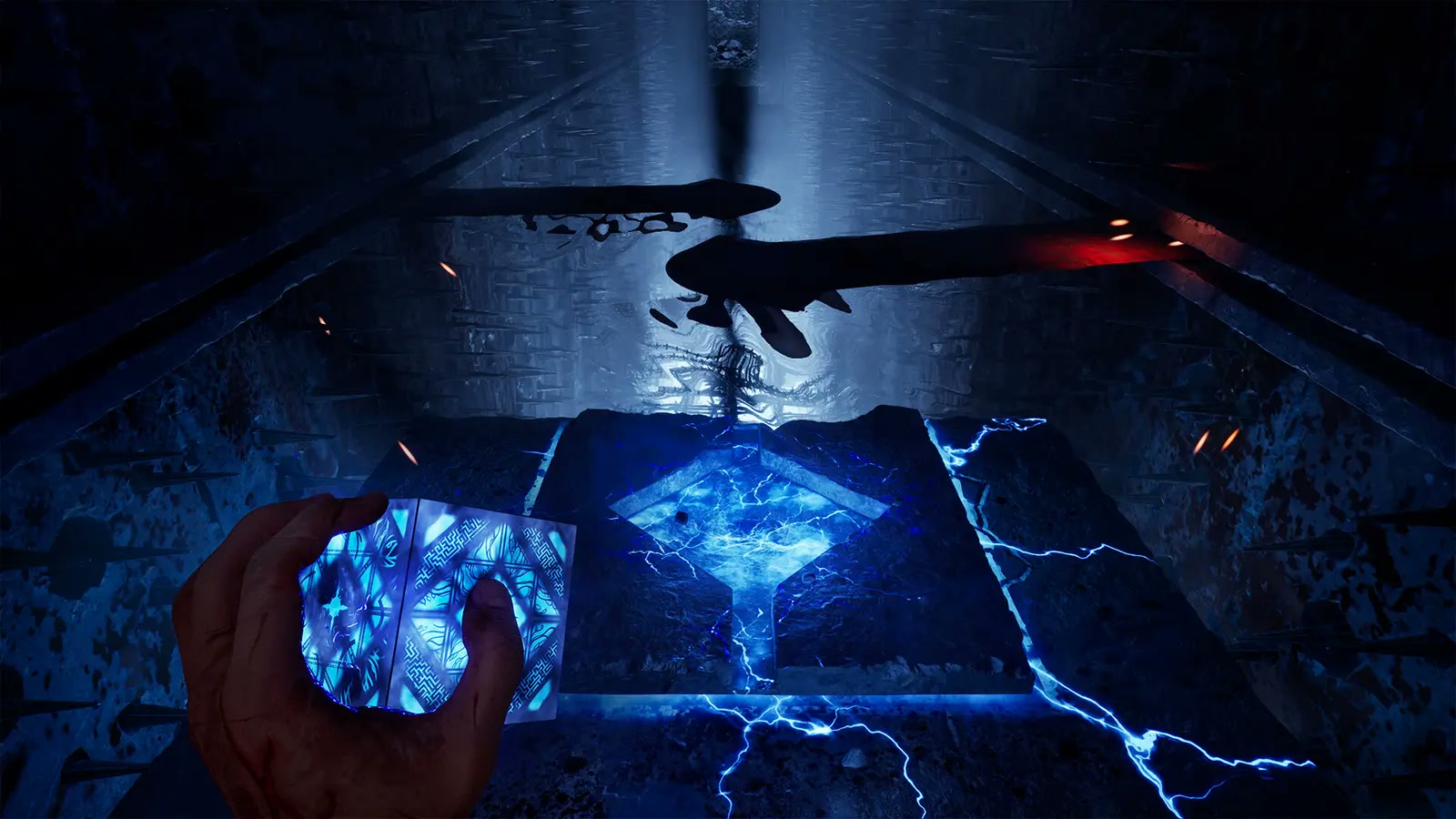
DLSS and FSR Configuration
Modern upscaling is practically mandatory on mid-tier hardware. The brand-specific recommendation (wccftech):
- NVIDIA GeForce RTX GPUs: DLSS Super Resolution (DLSS 3 Frame Generation is supported on RTX 40-series; pair it with NVIDIA Reflex to cut input latency).
- AMD Radeon RX 7000/9000 Series: FSR, preferably the ML-based FSR 4.1 when available.
- Intel Arc GPUs: XeSS Super Resolution.
- Other compatible GPUs: Unreal Engine 5 TSR.
Quality mode is a safe start at 1080p and 1440p; Balanced or Performance helps at 4K or when you need extra headroom. Set your sharpness slider to roughly 30% to counteract the slight blur temporal upscaling introduces — so you don’t miss enemy cues when the action speeds up. At 1440p, DLSS Quality stabilizes 1% low frame times and mitigates Cenobite-encounter micro-stutter on 8 GB cards.
How to Fix Stuttering
Micro-stuttering usually comes from shader compilation and aggressive post-processing overwhelming GPU memory bandwidth. Two steps resolve the vast majority of community-reported hitches:
- Let shaders compile fully. On first boot — or after a new GPU driver — a progress bar appears bottom-right on the main menu. Do not load your save until it hits 100%. Skipping it guarantees massive frame drops during the first Cenobite encounter and can stall the engine for up to a full second during the Genesis Configuration puzzle, causing unfair deaths.
- Disable cinematic filters. Turn both Motion Blur and Film Grain to zero in Display → Post-Processing. Pinhead’s attacks are fast; default motion blur smears the telegraph animations, making them impossible to dodge. This also lightly reduces post-processing load.
Pro tip: Always restart the game after changing texture quality so the VRAM pool is properly reallocated — preventing invisible texture bugs.
Budget vs Enthusiast Presets
Your ideal preset depends on whether your GPU targets 1080p budget performance or 1440p–4K enthusiast frame rates.
Budget (RTX 3060 / RX 6600, 1080p, stable 60 FPS): Textures Medium, Shadows Low, Volumetric Fog Low, DLSS/FSR Balanced. The image softens slightly, but Clive Barker’s signature gore still reads well on Medium settings.
Enthusiast (RTX 4070 / RX 7900 XT, 1440p–4K, 120 FPS): Textures and Shadows to Ultra, Volumetric Fog on High (not Ultra — the top setting’s penalty is disproportionate), and DLSS 3 Frame Generation to clear 100 FPS. Enable NVIDIA Reflex to offset generated-frame latency.
Real Benchmark Numbers
Beyond the settings guidance, wccftech’s measured benchmarks confirm the game is light on the CPU. On a laptop Core i7-12700H + RTX 4060 test system in a detailed environment:
| Metric | Result |
|---|---|
| Average FPS | 126.8 |
| 1% Low FPS | 89.5 |
| 0.1% Low FPS | 78.3 |
And the Epic-preset-vs-optimized comparison on that same 8 GB RTX 4060 laptop:
| Metric | Epic Preset | Optimized | Improvement |
|---|---|---|---|
| Average FPS | 86 | 114 | +33% |
| 1% Low FPS | 45 | 48 | +7% |
The optimized configuration — dropping only Shadow Quality and Anti-Aliasing (TSR) — delivered 28 extra average frames with little visual loss. The 1% lows improved only marginally, suggesting the worst frame-time spikes weren’t caused by the settings we reduced.
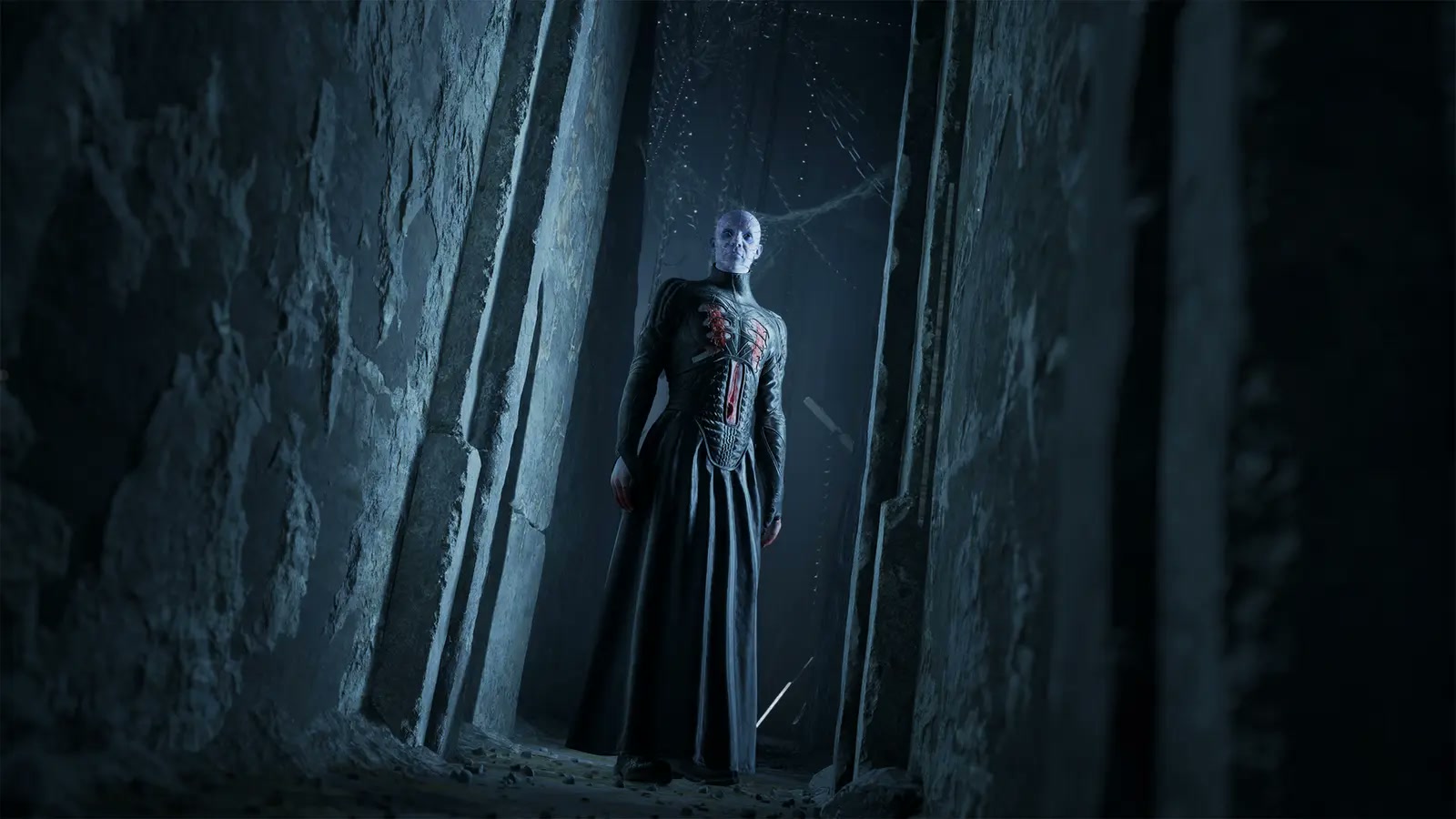
Final Verdict
Optimizing Hellraiser: Revival comes down to managing VRAM and taming expensive volumetric effects. Lower Volumetric Fog and Shadow Maps to Medium, disable Motion Blur and Chromatic Aberration, configure DLSS or FSR correctly, respect the shader compilation step, and watch your texture pool. Do that and a fluid 60+ FPS is well within reach — whether you’re on a budget RTX 3060 or an enthusiast RTX 4070.
| Pros | Light CPU load, clear per-setting FPS levers, friendly to midrange GPUs with upscaling |
| Cons | 8 GB VRAM cards need careful texture management; official specs omit a stated target FPS |
Frequently Asked Questions
Does Hellraiser: Revival support DLSS 3 Frame Generation? Yes — fully on RTX 40-series. It boosts frame rate especially at 4K, though it can add slight input latency (enable NVIDIA Reflex to counter it).
How do I disable film grain and motion blur? Main options → Display tab → Post-Processing section; toggle both off.
Can an 8 GB VRAM GPU run at 1440p? Yes, if you strictly manage the texture pool: lower textures to Medium and use DLSS/FSR Quality mode to prevent micro-stuttering and out-of-memory crashes.
Why does it stutter on PC? Primarily shader compilation stutter and exceeding VRAM. Let shaders compile on the main menu and lower textures on 8 GB GPUs.
How do I boost FPS fastest? Lower volumetric fog and shadow maps Ultra→Medium and enable DLSS/FSR — reclaim up to 28% performance.
Sources: wccftech — Clive Barker’s Hellraiser: Revival PC Performance Analysis & Tuning Guide by Sebastian Castellanos (Oct 19, 2026); XMODhub — Hellraiser: Revival Best PC Settings (60 FPS) by Nancy Miller (Oct 9, 2026); Steam — Hellraiser: Revival store page (official platform listing, primary source for specifications). All specifications and benchmarks are reproduced from those analyses; the third-party trainer promotion on the source site was intentionally omitted.
See our Hell Is Us Switch 2 performance review for another 2026 UE5-era port breakdown.
No comments yet. Be the first!